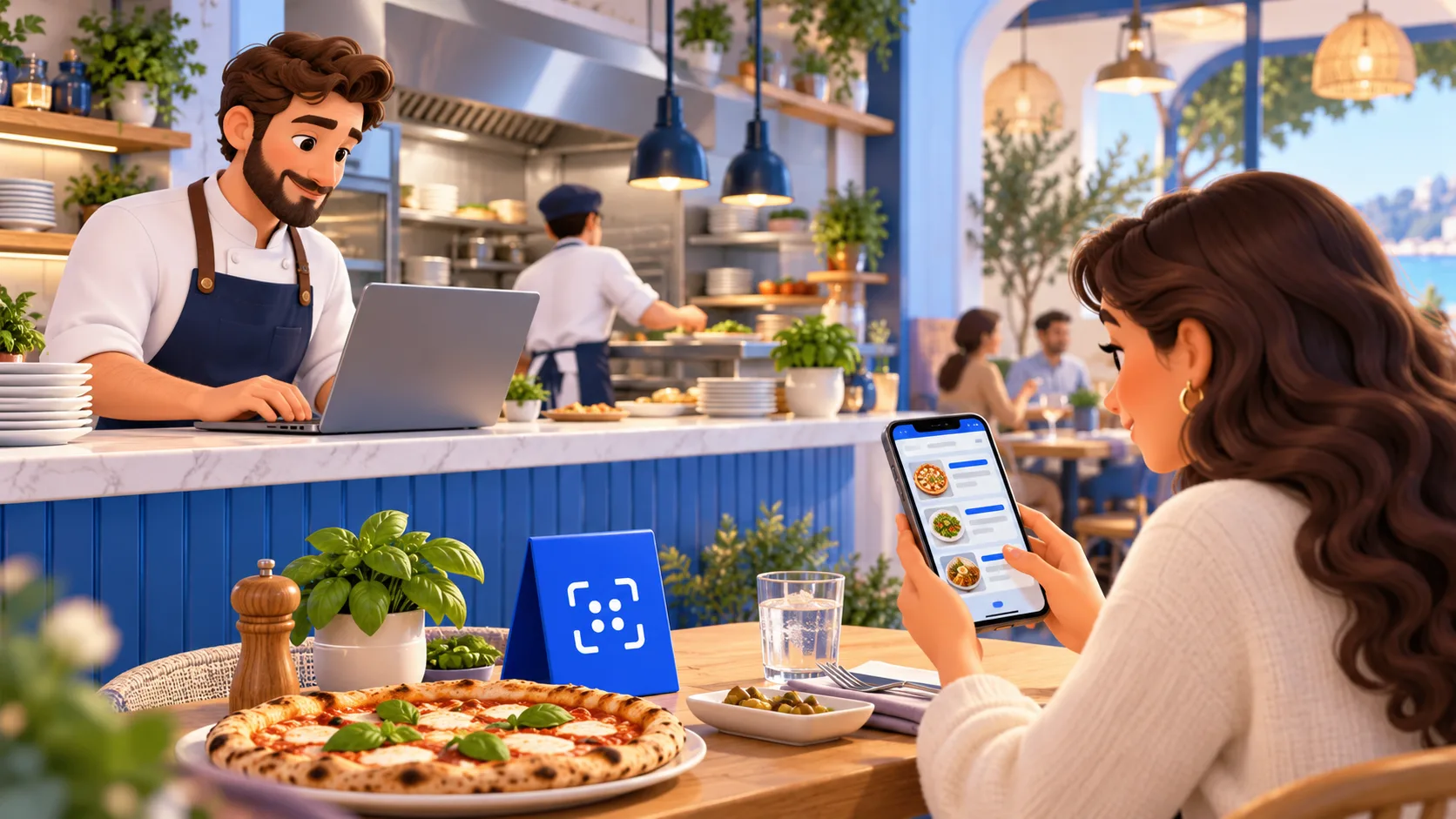
A QR menu is a promise your team has to maintain
A guest scans the table sign, chooses a pizza and asks for two toppings. The server then explains that the large size costs more than the menu suggests, one topping is unavailable, and the photograph shows an older version of the dish. Nothing is wrong with the QR code itself. The information behind it has fallen out of step with the kitchen. A useful digital menu routine prevents that gap from becoming somebody else’s problem during service.
The practical goal is simple: guests should be able to understand what the restaurant offers, what a size costs, which additions cost extra, and when they need to ask a staff member. This guide explains how to maintain those details in ReviewDoctor without confusing a draft with a published menu. It also covers situations where a digital menu needs a human conversation rather than another field or another image.
This is an operational guide, not a report of measured customer results. The pizza example below is invented to demonstrate a checking process. It does not establish an appropriate selling price, a revenue improvement or a reduction in complaints. Your team remains responsible for its actual menu, pricing decisions, ingredient information and service process.
Choose one source of truth before you edit
Decide who approves the menu and which record contains the approved details. That record might be a manager’s current price sheet or a controlled kitchen document. Avoid treating an old printed flyer, a delivery listing and a staff member’s recollection as equally authoritative. When two versions disagree, the editor needs a named person who can resolve the difference before the new information reaches customers.
Keep the working record practical. For each item, identify its category, name, description, full price, size choices, optional extras and availability. Record who approved a change and when it should take effect. A simple note is enough for a small team if everyone understands it. The purpose is to make the next update traceable, not to create an administrative task nobody can finish before opening.
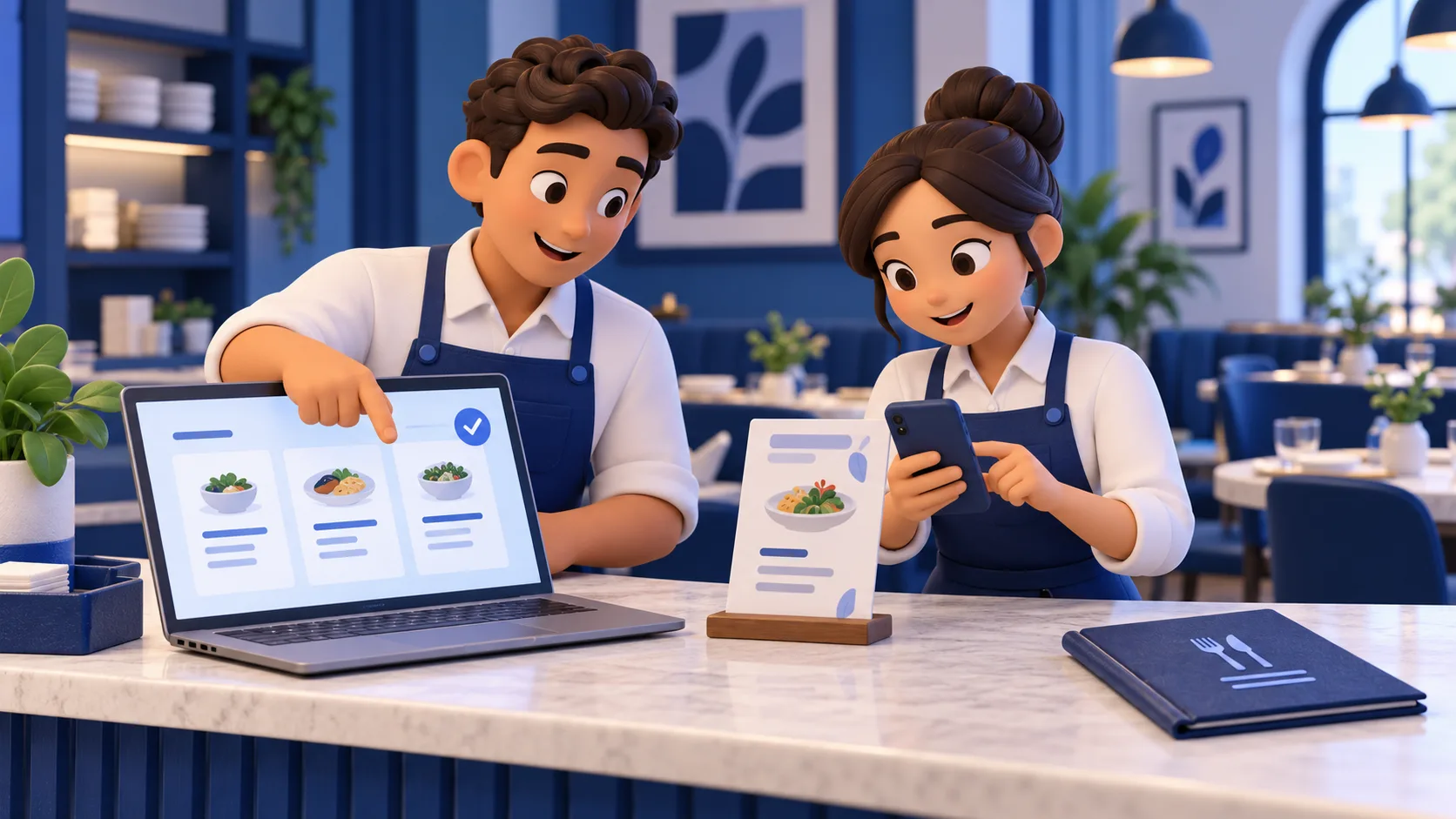
Separate approval from data entry when staffing allows. One colleague can enter a change while another compares it with the approved record. If the owner performs both jobs, make the second pass a distinct task: close the editing panel, reopen the draft preview and inspect it as a guest would. Familiarity with the intended price is not the same as checking the price actually displayed.
Model pizza sizes separately from topping surcharges
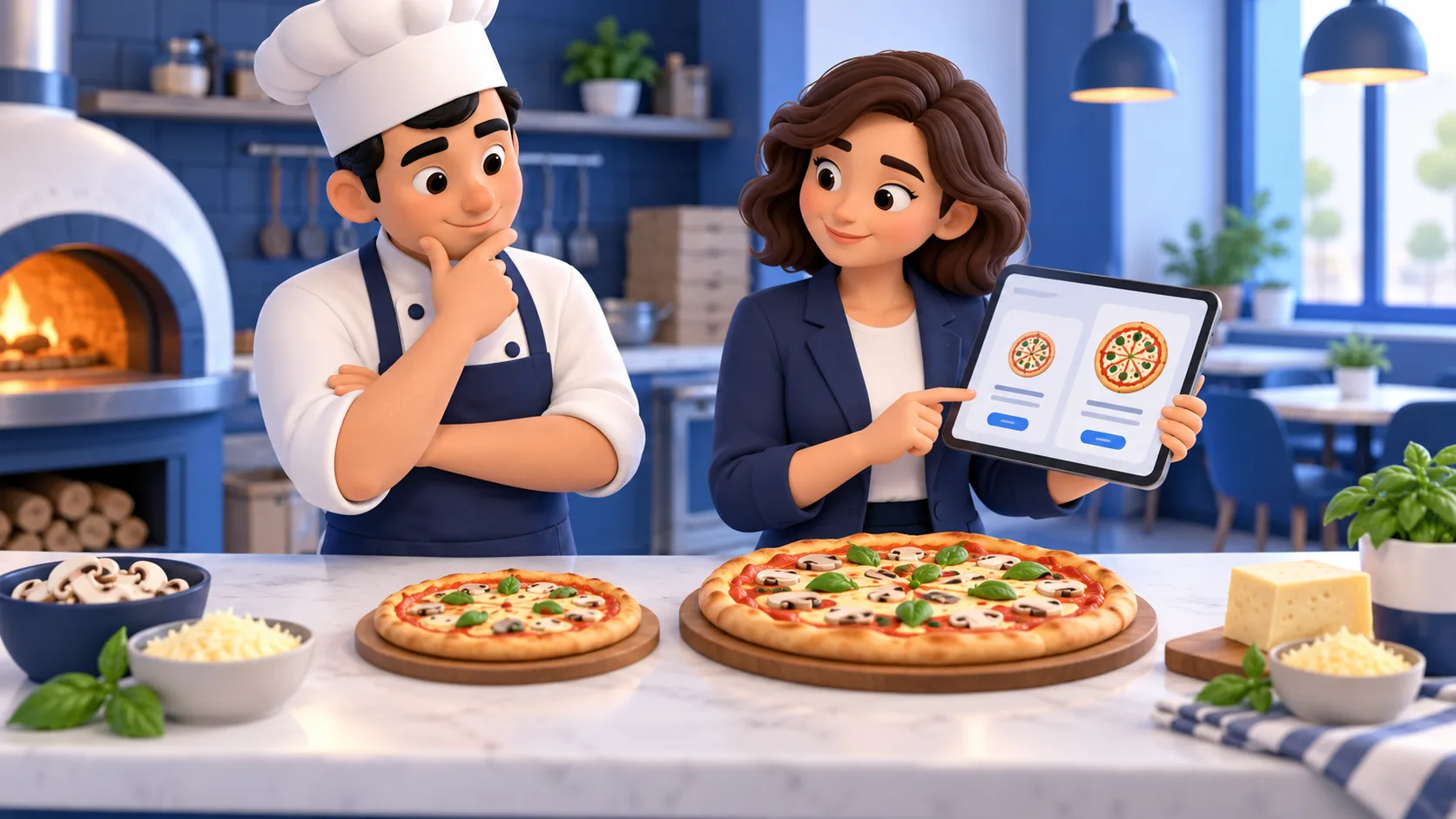
A size price describes the complete base item for that size. A topping surcharge describes an addition to that base. Keep those meanings separate. If a small cheese pizza and a large cheese pizza have different prices, create a size for each. Then give each topping its own extra price for every size. A single generic extra charge can mislead when the larger pizza uses a different portion.
In the ReviewDoctor item editor, open Sizes & toppings. Add the size names and their full prices, then create a group such as Pizza toppings. Add each topping and fill its extra price for every size. Once sizes are present, those size prices replace the main item price in the customer display. The menu can summarize the item with a starting price while showing the individual size choices below.
Enter zero deliberately when an addition has no extra charge. A blank price means the guest must ask for a price; it should not be used as shorthand for free. When you add a size later, review every topping again because the new size’s amounts need to be set. Likewise, removing a size removes its associated topping-price entries. Do that only after checking that the kitchen no longer needs the choice.
Hypothetical walkthrough: checking a small and large pizza
Imagine a restaurant setting a small cheese pizza at $10 and a large at $14. Pepperoni is an extra $1.50 for the small and $2.50 for the large. Extra cheese is an extra $1 for the small and $2 for the large. These are made-up amounts for the walkthrough. They are not Middle River Inn prices, market benchmarks or suggestions about what another restaurant should charge.
The editor first enters Small and Large as sizes, using the full base prices. Next, the editor adds Pepperoni and Extra cheese to the topping group and checks both size columns. A second person reads the draft aloud: small cheese pizza, ten dollars; small pepperoni addition, one dollar and fifty cents. They repeat the exercise for the large rather than assuming the first column proves both are correct.
As an internal arithmetic check, a large pizza with both additions would be $18.50 before any other applicable charges. That arithmetic is a staff check, not a claim that ReviewDoctor calculates a basket total. The current customer menu displays the selected size and its topping surcharges; it does not send an order or take payment. Staff still confirm the guest’s request using the restaurant’s normal ordering process.
Use menu-photo import as a first draft
A photograph can save transcription work, but it should not become the final authority on your menu. Start with a clear, straight-on picture in good light. If the source has several pages, keep them in order and make sure the last item on each page is visible. A beautiful image with a missing bottom edge is still incomplete. Replace a blurry photo before spending time correcting an unreliable extraction.
ReviewDoctor can capture categories, item names, descriptions and prices from selected menu photos for review. Compare every selected row with the original, correct uncertain information and add the reviewed items to your draft. Existing entries are preserved by the additive import process, so look for repeated items before applying. A likely duplicate deserves a decision: keep the existing entry, update it manually, or include a genuinely different item.
Do not assume a printed topping matrix will automatically become structured size-dependent options. The import workflow extracts item rows; use Sizes & toppings afterward to organize the approved size and extra-price relationships. Check punctuation and decimal placement carefully. If a printed source is outdated, correcting the extraction to match it faithfully still produces an outdated menu. Resolve the source first.
Keep ingredient information separate from visual guesses
A dish photograph can help a guest recognize a meal, but it cannot verify the recipe. Do not infer a dietary label from a dish name, an AI-generated description or the ingredients visible in a picture. Ask the person responsible for the kitchen’s ingredient information to review the text. When a supplier or recipe changes, include the description and any existing dietary labels in the update.
The FDA’s Food Allergies: What You Need to Know explains that ingredient information helps people identify foods they need to avoid. Its consumer guidance is included in the sources below. For menu maintenance, the practical lesson is to treat food information as something to verify, not decorative marketing copy. This article does not determine which food-labeling rules apply to your restaurant or certify that a menu is suitable for a particular guest.
Use the restaurant’s established process for allergy questions and uncertainty. A general request to speak with the team can support a conversation, but it is not a replacement for checking the actual information. Remove an unsupported claim rather than trying to make it sound reassuring. Keep staff informed when the public wording changes so the menu and the conversation at the counter do not contradict one another.
Give sold-out items a deliberate status
Agree on what happens when an item runs out during service. A visible Sold out label can explain that an item normally belongs on the menu but is not available now. Hiding an item can be useful when it is no longer part of the current offer. Those are different editorial decisions. Choose the status that accurately represents the situation rather than deleting an item reflexively and rebuilding it tomorrow.
ReviewDoctor offers Available, Sold out and Hidden item states. Hidden items do not appear in the public menu. A draft change still needs publication before it changes the customer version. Give that final step an owner, especially when the kitchen communicates a shortage to the front desk or bar. A message saying something is unavailable is only the beginning of the menu-update handoff.
Check restoration as carefully as removal. Before the next service, compare yesterday’s unavailable list with today’s kitchen confirmation. Do not automatically return everything to Available merely because the date changed. If stock has not arrived or a preparation is not ready, an automatic assumption creates the same mismatch again. Keep the reopening check small enough that the person responsible can complete it consistently.
Preview the menu as a guest, not as its editor
Read the draft in the order a guest will encounter it. Start with the category names, find a familiar dish and inspect the price before opening another category. Switch every size on items that have them and read the topping prices again. Search for a topping or ingredient term to see whether the right item can be found. Check long descriptions and long names rather than testing only the shortest entries.
Use a phone for the practical review whenever possible. Look for text that is difficult to read, prices separated from the choice they describe, or controls that feel cramped. W3C’s contrast guidance explains why sufficient difference between text and background matters. Use that as a reason to prefer readable text over faint decorative styling; a quick visual inspection alone is not a complete accessibility assessment.
W3C’s informative-image guidance also recommends text alternatives that convey an image’s relevant information. Keep meaningful menu information in text rather than relying on a photograph of a printed page. In ReviewDoctor, item photos are accompanied by the item’s text and name-based alternative text. Make the names useful, and provide a staff-assisted or paper option for guests who cannot or prefer not to use the QR menu.
Publish once, then test the printed sign
Save draft is a preparation step. Publish menu is the step that updates what customers can see. Use that distinction intentionally when a price change should begin at a particular service. Prepare the approved changes, review the preview, then have the responsible person publish when the new offer is actually in effect. Do not tell the team the customer menu has changed merely because the editor has saved.
After publishing, open the customer menu link and inspect the changed items. Then scan a printed sign at the location where a guest will use it. This tests a different part of the experience: the paper, the lighting, the camera’s view and the destination. A code that looks clear on a laptop may be awkward behind a reflective holder or an object on a crowded table.
The ReviewDoctor menu QR links to the business’s customer menu, so ordinary published edits do not require a new code. That convenience depends on keeping the menu published and the destination available. Unpublishing takes the menu offline. Keep a backup way to help guests, and inspect physical signs for damage or replacement whenever the team resets the tables.
Coordinate TV specials and other menu copies
List the places where the same offer appears: the customer menu, a printed insert, a TV slide, a counter board or another ordering service. Assign a check for each place when a price changes. One updated page cannot make every other copy accurate. Tell the team which surfaces have been updated and which are still awaiting replacement, rather than using the vague instruction that the menu is done.
ReviewDoctor can create a TV specials banner from the first three available specials in the published menu. That banner is an image saved to the TV media library. It does not become a live price feed after creation. If the item name, price or availability changes, recreate the banner and update the relevant playlist using the existing TV workflow.
Before changing a playlist, confirm that the newly created image is the intended replacement and that the correct screen uses it. Remove outdated promotional material through the normal publishing process. A QR link on a TV image can open the current menu while the image itself still shows an older offer; check both parts. This is a coordination task, not an automatic synchronization guarantee.
Build a short opening and closing routine
At opening, the manager can compare today’s approved changes with the public menu, inspect size-specific extras, confirm unavailable items and scan one sign. Ask a colleague to check a different category periodically so mistakes outside the daily-specials section do not remain invisible. The exact frequency should fit the business. What matters is a named responsibility and a repeatable definition of what has been checked.
At closing, note unresolved discrepancies and give them an owner for the next service. Useful notes identify the item, the incorrect field, the approved correction and whether publication is still needed. Avoid collecting customer information when a simple menu correction will answer the operational question. Keep investigation of individual complaints in the business’s existing private process.
Judge the routine by verifiable work: a topping amount was corrected, a missing size was added, an obsolete slide was replaced or a sign was tested. Do not turn those actions into unsupported claims about revenue, rankings or customer satisfaction. An accurate QR menu is an ongoing service habit. Start with a manageable menu, keep the handoffs clear and make every published change something your team can explain.