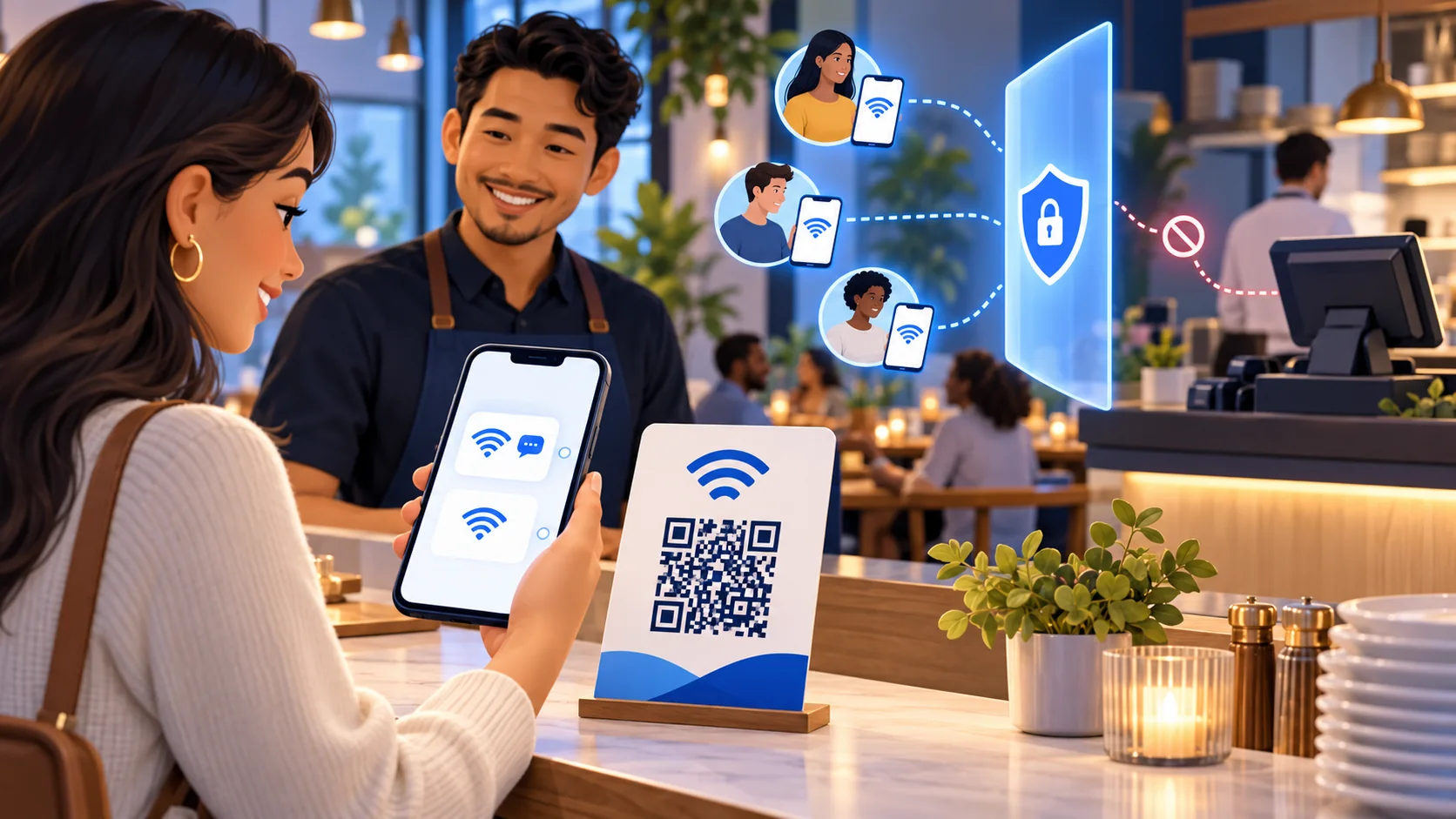
Guest Wi-Fi is a service moment, not just a password
A guest who asks for Wi-Fi is usually trying to solve an immediate problem: open a menu, message a friend, check a reservation, work between meetings or keep a child entertained. The best restaurant Wi-Fi flow respects that urgency. It tells the guest what network they are joining, what information is requested, whether marketing is optional and what will happen after the tap. A clever sign cannot rescue a confusing connection page, weak coverage or a process the staff cannot explain.
Treat the journey as part of hospitality. Someone should be able to scan the sign, understand the choices and reach the internet without hunting for a password printed behind the counter. If the restaurant also wants permission to send offers, that request belongs in the flow as a distinct, voluntary decision. Access to the basic guest service should not depend on agreeing to advertising messages when the restaurant promises a connect-only option.
This guide separates three jobs that are often mixed together: the wireless network provides access, a supported captive portal or controller authorizes the device, and ReviewDoctor can collect the guest’s choices and contact details. Planning each job first prevents a common launch-day surprise: a polished web page cannot, by itself, tell an ordinary router to open internet access.
Start with the network boundary
Before designing the QR sign, ask whoever manages the network to create a dedicated guest network that is separated from point-of-sale terminals, payment devices, office computers, printers, cameras and other business systems. The Federal Trade Commission’s small-business cybersecurity guidance recommends a separate public network for customers, and its remote-access guidance likewise tells businesses to keep guest Wi-Fi separate from the business network. That boundary reduces the chance that a guest device can reach systems used to run the restaurant.
Use currently supported equipment, a unique administrator password, current firmware and modern wireless protection such as WPA2 or WPA3 where the chosen guest design supports it. The National Institute of Standards and Technology explains that wireless security depends on the secure configuration and ongoing monitoring of access points, switches and other components across their life cycle. A one-time installation is not the end of the job: someone must own updates, logs, backup configuration and periodic review.
ReviewDoctor does not configure a firewall merely by displaying a QR page. The restaurant or its network professional remains responsible for segmentation, access-point placement, capacity, bandwidth limits and any content or abuse controls. Write down who owns those tasks. If no one can name the person responsible for the network, the restaurant is not ready to make the connection flow a customer-facing promise.

Choose the connection mode before designing the sign
There are two practical modes. In QR-to-password mode, the guest scans a sign, completes the ReviewDoctor page and then receives the network name and password or a device-supported join action. This works without a captive-portal integration, but the password can still be copied or shared. It also cannot guarantee that every device joins automatically, because mobile operating systems and browsers control how Wi-Fi join prompts behave.
In captive-portal mode, compatible network hardware directs a newly connected guest to a welcome page and authorizes the device after the required network terms and chosen data flow are completed. This is the mode that can support the experience of entering information and then tapping to continue without revealing a reusable password. It requires a supported controller, access point or gateway and the correct portal integration. ReviewDoctor should only label a location as captive-portal ready after the actual hardware path has been configured and tested.
Keep a fallback for both modes. A portal may fail to appear because a phone remembers the network, private addressing changes device identity, a browser blocks a redirect or the controller is temporarily unavailable. A printed network-help line, a staff troubleshooting card and a connect-only fallback can turn a technical edge case into a short service interaction rather than a frustrated guest abandoning the process.
Keep Wi-Fi access separate from marketing permission
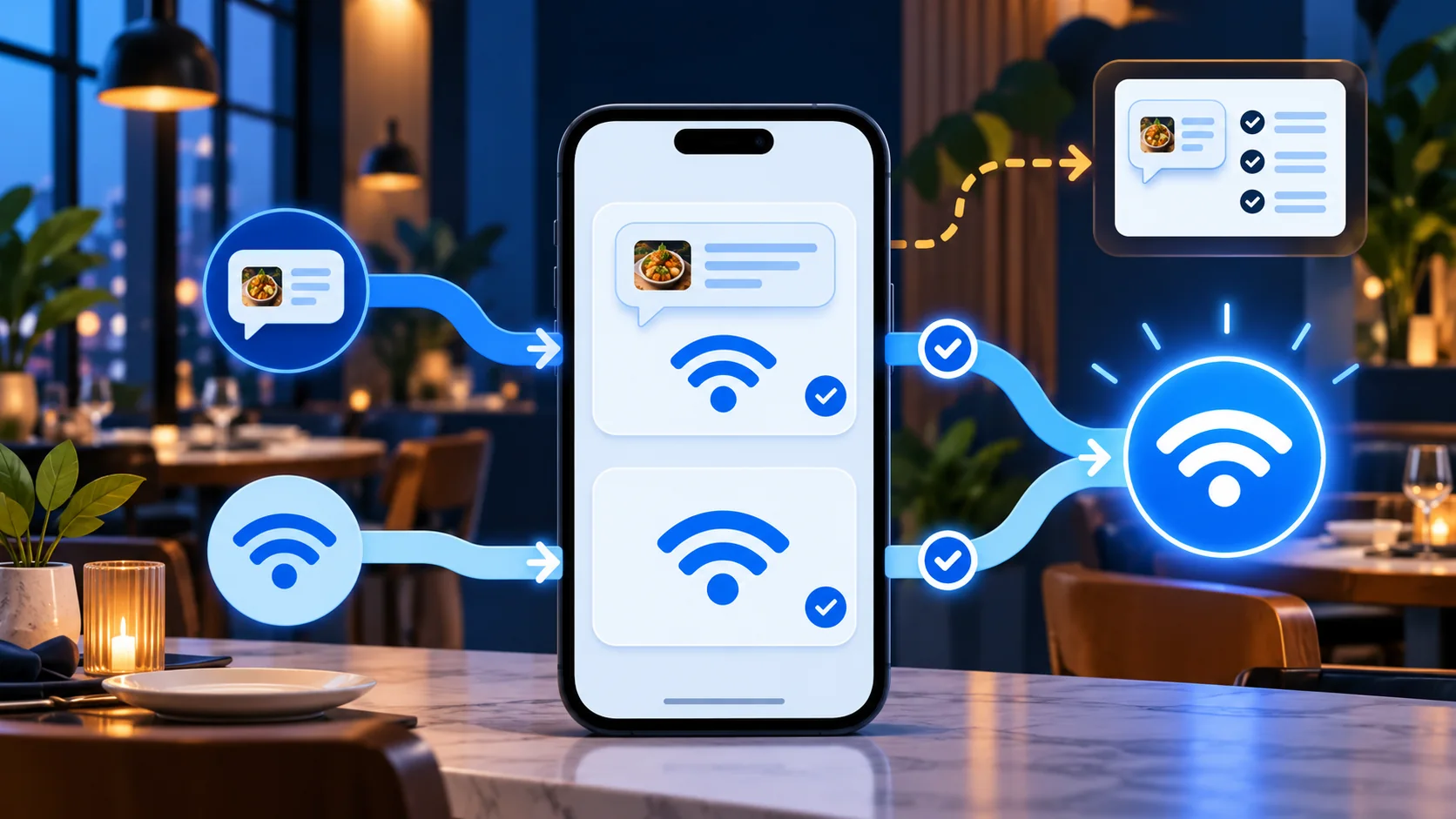
A clean one-page flow can offer two clear outcomes: “Yes, send me offers and connect” and “No thanks, connect only.” Both choices should lead to the same guest Wi-Fi access. The first records the contact details, disclosure presented, timestamp and affirmative marketing choice. The second records only what is necessary to provide or document the network session under the restaurant’s chosen setup. Do not make the connect-only option visually hidden, misleading or functionally weaker.
This separation makes the promise understandable to guests and easier for staff to explain. It also produces a more useful marketing list because the people on it intentionally selected the offer path. The Federal Trade Commission’s privacy guidance urges businesses to be clear about data practices, obtain affirmative permission for collection that is not obvious and make choices easy to use. The words, button labels and data handling should match the actual behavior.
For promotional texts, display the business identity, message purpose, expected frequency, optional nature of consent, possible message and data rates, and STOP and HELP instructions as appropriate for the program. Maintain a functioning opt-out process and honor revocation requests. Messaging rules, carrier requirements and provider approvals change, so the restaurant should review the current FCC rules, its messaging provider’s program requirements and applicable state law before launch.
Ask only for information you will use
The shortest useful form usually wins. If the restaurant’s approved marketing program uses first name and mobile number, do not add birth date, home address or demographic questions just because the page has room. Every extra field creates friction and becomes information the restaurant must protect, explain, retain and eventually delete. The FTC’s privacy guidance recommends collecting only what is needed and protecting what is kept.
Define the purpose of every field in a short data map. Record where the value is stored, who can see it, how it is exported, how corrections and deletions are handled, and when it expires. Give staff role-based access rather than sharing one login. A restaurant manager may need campaign and connection summaries; a server helping a guest usually does not need access to the guest list.
Use the restaurant’s own privacy notice and network terms, and make them readable before the guest commits. The network terms can address acceptable use and session limits, while the marketing disclosure covers promotional contact. Combining every policy into one vague sentence makes neither choice clear. Keep versioned copies of the language presented so the restaurant can identify which notice accompanied a particular consent record.
Design the one-page guest flow
Put the restaurant name or logo, a brief guest Wi-Fi heading and the essential choices above the fold where practical. Use mobile-sized fields, a numeric phone keyboard, strong contrast and plain error messages. The page should say whether it is a preview, password flow or live portal. A guest should never believe internet access is active while looking at an administrative demonstration.
Keep the connect-only text visible near the primary button, but it can be visually lighter as long as it remains legible and easy to tap. Do not preselect marketing permission. If network terms must be accepted, keep that required step separate from the promotional choice. After submission, show one next action: join the named network, copy the password, approve the device prompt or wait while the portal authorizes access.
Design for the difficult environment. Guests may be standing near a host desk, using one hand, dealing with glare or running low on battery. Test large text settings, screen readers, keyboard navigation, dark mode, older phones and a slow connection. Compress the page assets so the experience loads before the guest has internet access; a portal that depends on a heavy external script can fail at the exact moment it is most needed.
Make the sign trustworthy and easy to place
The printed sign should identify the restaurant, state “Guest Wi-Fi,” and use a high-contrast QR code with enough quiet space around it. A short instruction such as “Scan to connect” is clearer than a long feature list. Place signs where the decision naturally happens: the host stand, waiting area, table tent, bar counter or room desk. Avoid reflective covers, folds and locations where a guest must lean over another table to scan.
Use a ReviewDoctor-generated link or the restaurant’s approved domain, and keep the destination editable without reprinting the QR code when the dynamic-link feature is used. The sign should never point directly to a temporary staging URL. Add a short human-readable fallback only if the restaurant is comfortable with guests typing it. Do not print a password on the sign when the goal is to manage access through a portal.
Test every physical batch before distribution. Scan at arm’s length with both iPhone and Android devices, under the actual lighting, from the final holder. Confirm that the destination uses HTTPS and displays the expected restaurant identity. Photograph the placed sign and record its QR station in the dashboard so a later traffic spike or dead link can be traced to a real location.
Prepare the restaurant team
Give front-of-house staff a one-minute explanation: where the sign is, what the two choices mean, what the network is called and what to do if the portal does not appear. The script can be simple: “Scan this sign, choose offers plus Wi-Fi or Wi-Fi only, and follow the join prompt.” Staff should never tell a guest that marketing permission is required when the restaurant offers a connect-only path.
Create a small troubleshooting sequence. First confirm that Wi-Fi is enabled and the guest selected the correct network. Next forget and rejoin the network if the portal is stuck. Then open a plain web page to trigger the captive portal, or use the password fallback if that is the configured mode. Finally escalate to the manager or network contact. Do not ask staff to disable security controls or disclose an administrator password.
Set service ownership for outages. The shift manager can confirm the symptom and pause table signs; the network provider can check the access point and controller; the ReviewDoctor administrator can confirm the landing page and form. A status note for staff prevents ten people from trying unrelated fixes. When service returns, test both marketing and connect-only routes before putting the signs back.
Test the real journey before launch
Run a launch test on an actual guest device that has never joined the network. Start from the printed sign, not an administrator bookmark. Complete the offers route, verify the disclosure and consent record, confirm the join or authorization action and test internet access. Then remove or forget the network and repeat the connect-only route. The result should be equal network access without a marketing subscription on the second path.
Repeat the test on at least one current iPhone and Android phone. Check a device with a remembered network, a private address, a disabled pop-up and a weak signal. Walk to the furthest dining area and confirm that the device stays connected. A successful scan at the host stand says nothing about capacity during a Friday dinner rush, so review access-point load and internet bandwidth with the network owner.
Also test the record lifecycle. Send an opt-out keyword through the approved messaging provider, confirm suppression, verify that ordinary staff cannot export contacts and confirm that expired data follows the restaurant’s retention plan. Save the launch checklist with the portal configuration and sign version. That evidence is more useful than relying on someone’s memory of what was tested months earlier.
Measure the experience without overclaiming
Useful operational measures include QR scans, page starts, completed connection routes, connection errors, median completion time, connect-only share and opt-out volume. Network measures such as active guest devices, access-point utilization, authentication failures and help requests belong beside the form data. A high number of scans does not prove that guests reached the internet, and a completed form does not prove that a promotional message was delivered.
Use drop-off points to improve the journey. If many guests stop before the network-terms checkbox, the language or placement may be confusing. If Android devices fail after submission, the portal integration may need attention. If one sign generates many scans but few completions, inspect the sign, lighting and Wi-Fi coverage at that location before changing the marketing copy.
Avoid turning connection analytics into individual guest surveillance. Aggregate the data needed to manage performance, restrict raw identifiers and document retention. Compare changes over time, but do not publish an improvement claim without a defined baseline, sufficient observation and a reliable measure. ReviewDoctor can organize the signals; the restaurant still needs to investigate the cause.
Hypothetical walkthrough: a busy neighborhood restaurant
Consider a hypothetical restaurant called Harbor Table. Its point-of-sale devices use a protected business network, while a managed access point broadcasts a separate guest network. A tabletop sign opens a ReviewDoctor page. The page asks for name and mobile number only on the offers route and provides a clearly visible connect-only choice. The captive portal authorizes either route after the guest accepts the same network terms.
Before launch, Harbor Table tests the sign with two phone platforms, records the notice version and confirms that the connect-only test creates no promotional subscription. The general manager receives a short staff guide and the network vendor owns access-point alerts. During service, a guest whose portal does not open is helped through the documented forget-and-rejoin sequence rather than being asked to provide marketing consent.
After several weeks, the team reviews aggregated starts, completions, error types and opt-outs. It notices that help requests cluster on the patio and asks the network vendor to test coverage there. This walkthrough is fictional and intentionally contains no conversion rate, revenue claim or testimonial. Its purpose is to show how ownership, consent and network operations fit together.
Use a 30-minute launch review
Begin with ten minutes on infrastructure: confirm a separate guest network, current administrator access, supported firmware, secure configuration, capacity and an identified network owner. Confirm whether the location is using QR-to-password or a supported captive portal. If the portal integration has not been validated on the installed hardware, do not promise automatic authorization or hide the fact that a password step remains.
Spend the next ten minutes on the guest page: check restaurant identity, HTTPS, required fields, network terms, privacy link, marketing disclosure, equal-access choices and the single next action. Scan the final printed sign. Complete both paths on real phones. Confirm that the Wi-Fi-only route connects without creating promotional permission and that the offers route stores the consent record expected by the approved messaging program.
Use the final ten minutes for operations: verify staff instructions, escalation contacts, outage messaging, opt-out suppression, access roles, retention settings and the first review date. Assign each unresolved item to a named owner. A restaurant should launch only when the network, page and people tell the same story. That alignment is what turns a QR code into a dependable guest experience.